Best Dato App Alternatives for Mac in 2026
Dato is view-only — no event creation. The 10 best Dato alternatives for Mac in 2026: from Fantastical and BusyCal to Aftertone, Morgen, and Notion.
Written By The Aftertone Team

Best Dato App Alternatives for Mac in 2026
Quick answer: What you need depends on why you're leaving Dato. The alternatives split into two distinct groups:
Want something simpler or free (staying in menu bar): Itsycal — free, open-source, does the core glance use case cleanly. MeetingBar — free, open-source, specialises in joining video calls from the menu bar.
Want more than a menu bar utility (moving to a full calendar): Fantastical — best design + NLP, strong menu bar component ($4.75/mo). Aftertone — calendar + tasks + AI productivity reports, preserves Dato's design sensibility ($30/month, Mac). Apple Calendar — free, native, covers standard scheduling. Calendar 366 II — full calendar with excellent menu bar, one-time purchase.
What Dato is — and what it isn't
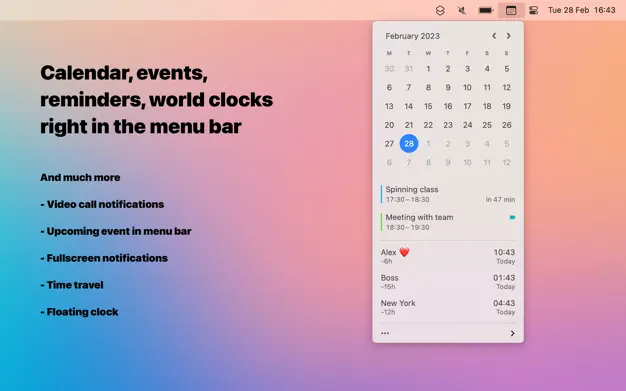
Dato is among the best-designed Mac utilities in the App Store. Sindre Sorhus has built a menu bar calendar companion that manages to be genuinely useful, visually refined, and thoughtfully maintained across macOS updates. The world clock integration, customisable event display, time zone time travel, fullscreen meeting notifications, and month calendar in the menu bar all show a level of craft that most utilities don't bother with. The one-time purchase model and lifetime updates are honest pricing. For the glance-and-check use case, Dato is close to perfect.
Dato is a utility. That's not a criticism — it's a precise description of what it is and what it's for. As Dato's own developer describes it: Dato is "a read-only view of your events." It reads your calendar data and presents it accessibly in the menu bar. It doesn't manage a full calendar workflow, doesn't have deep task management, doesn't analyse your productivity patterns, and was never designed to.
For users for whom that scope is exactly right, Dato is the answer and the alternatives below are curiosities. For users who have found that scope isn't enough any more — or who want something simpler and free — here's what comes next.
Three signals that you've outgrown Dato
The signal that you need something different from Dato usually takes one of three forms:
You're opening a full calendar app constantly. The menu bar view doesn't give you enough context. You need a proper week view, the ability to reschedule things by dragging, or to create events with NLP rather than clicking through a date picker. If you're spending more time in your full calendar app than in Dato, you need a full calendar app — not a companion utility.
You have tasks that need to live alongside your events. Dato sees your calendar events but has no awareness of your task list. If you're increasingly bothered by the separation between what you need to do and when you've blocked time to do it, the answer is a tool that treats tasks and calendar as the same system, not two separate ones.
You want to understand your week, not just see it. Dato shows you what's scheduled. It has no mechanism for telling you whether the schedule is working — which time slots tend to produce your best work, whether meeting fragmentation is gradually consuming your focus hours, or what your scheduling patterns reveal about your productivity. The menu bar gives you data. It gives you no interpretation of that data.
All three signals point in different directions. The first suggests a better menu bar app or a full calendar. The second suggests a unified calendar-and-tasks tool. The third suggests a tool with productivity intelligence built in. The alternatives below address each case.
How we evaluated these alternatives
What use case they serve. This is the primary organising criterion. Menu bar utilities are evaluated differently from full calendar apps — they serve different purposes.
Design quality. Dato users chose Dato partly because it's well-made. That standard is worth carrying forward.
Pricing model. Dato is a one-time purchase. Alternatives that are free or one-time are flagged; subscriptions are noted honestly.
Whether they add a menu bar component. For users upgrading to a full calendar, retaining quick menu bar access for glancing matters.
At a glance: all alternatives compared
App | Type | Best for | Menu bar | Tasks | AI insights | Price |
|---|---|---|---|---|---|---|
Itsycal | Menu bar utility | Free Dato alternative | Yes (primary UI) | No | No | Free |
MeetingBar | Menu bar utility | Video call joining | Yes (primary UI) | No | No | Free |
Fantastical | Full calendar | Design + NLP + menu bar | Yes (excellent) | Via Reminders | No | $4.75/mo (annual) |
Calendar 366 II | Full calendar | Feature-rich, one-time price | Yes (strong) | No | No | ~$30 one-time |
IceCal | Menu bar utility | Simpler than Dato | Yes (primary UI) | No | No | Free / small fee |
Apple Calendar | Full calendar | Free, native, zero setup | Via widgets | Via Reminders | No | Free |
Aftertone | Full calendar + productivity | Calendar + tasks + AI reports | Yes (included) | Native | AI weekly and daily reports | $30/month |
Dot Calendar | Richer menu bar with NLP, world clocks, meeting links | Menu bar utility (full-featured) | Native Mac app | Paid (one-time) | ||
Notion Calendar | Free full calendar for Notion users | Full calendar app | Native Mac app | Free | ||
BusyCal | Full calendar | Power features + one-time price | Yes (included) | Via Reminders/Todoist | No | ~$50 one-time |
1. Itsycal — best free menu bar alternative
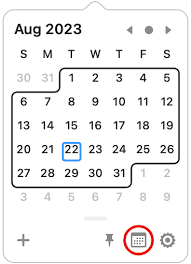
Best for: Dato users who want the core glance-and-check menu bar calendar use case for free — without Dato's world clock features or the level of customisation.
Itsycal is the most widely recommended free Dato alternative, and has been a staple of the Mac power user toolkit for years. It's open-source, free, actively maintained, and does the essential menu bar calendar job cleanly: a small calendar in the menu bar, your upcoming events listed below it, event creation with a keyboard shortcut, and week number support. What it doesn't have is Dato's world clock integration, time zone time travel, fullscreen meeting notifications, or the breadth of customisation options that make Dato worth paying for.
For Dato users whose primary use is simply checking dates and upcoming events — who rarely use the time zone features or detailed customisation — Itsycal covers the core use case for nothing. For users who actively use Dato's world clock and time zone coordination features, it doesn't.
Pros:
Free and open-source — zero cost, no subscription, no vendor risk
Actively maintained and updated for current macOS versions
Covers the core menu bar calendar use case cleanly
Week number display, ISO 8601 standard
Keyboard shortcuts for navigation
Creates and deletes events (cannot edit)
Cons:
No world clock or time zone time travel — Dato's standout features
No fullscreen meeting notifications
No video call integration (Zoom, Meet, Teams)
More basic customisation options than Dato
Cannot edit events — only create and delete
Pricing: Free.
Why switch from Dato: You want the menu bar glance use case at zero cost and don't use Dato's world clock, time zone, or meeting notification features heavily.
2. MeetingBar — best free alternative for video call users
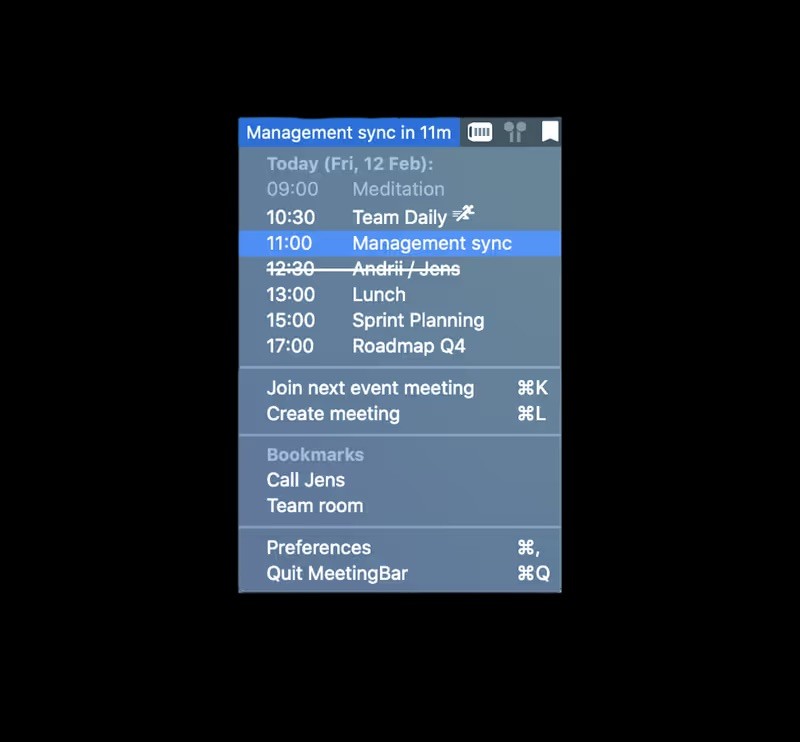
Best for: Dato users whose primary use is joining video calls quickly from the menu bar — and who want that specific workflow covered for free.
MeetingBar is a free, open-source Mac app that specialises in exactly one thing: showing your upcoming meetings in the menu bar and letting you join them with one click. It supports Zoom, Google Meet, Microsoft Teams, and 40+ other video call services. For remote workers and professionals whose calendar is dominated by video calls, MeetingBar covers the most time-critical Dato use case — getting into the next meeting without hunting for the link — without the additional features of Dato and without any cost.
It's narrower than Dato by design. There's no world clock, no time zone management, no detailed event display, no event creation. It's the tool for "show me my next meeting and let me join it in one click." For users who use 80% of Dato for this one workflow, MeetingBar covers it free.
Pros:
Free and open-source
40+ video call service integrations (Zoom, Meet, Teams, Webex, and more)
One-click meeting join from the menu bar
Supports all calendar services that macOS supports
Keyboard shortcut for joining next meeting
Cons:
Narrowly focused — no world clock, no time zone features, no event creation
Less customisable than Dato
Not a general calendar utility — purpose-built for meeting joining
Pricing: Free and open-source.
Why switch from Dato: Joining video calls quickly is your primary Dato use case and you want that covered for free, without Dato's additional features.
3. Fantastical — best upgrade to a full calendar with menu bar
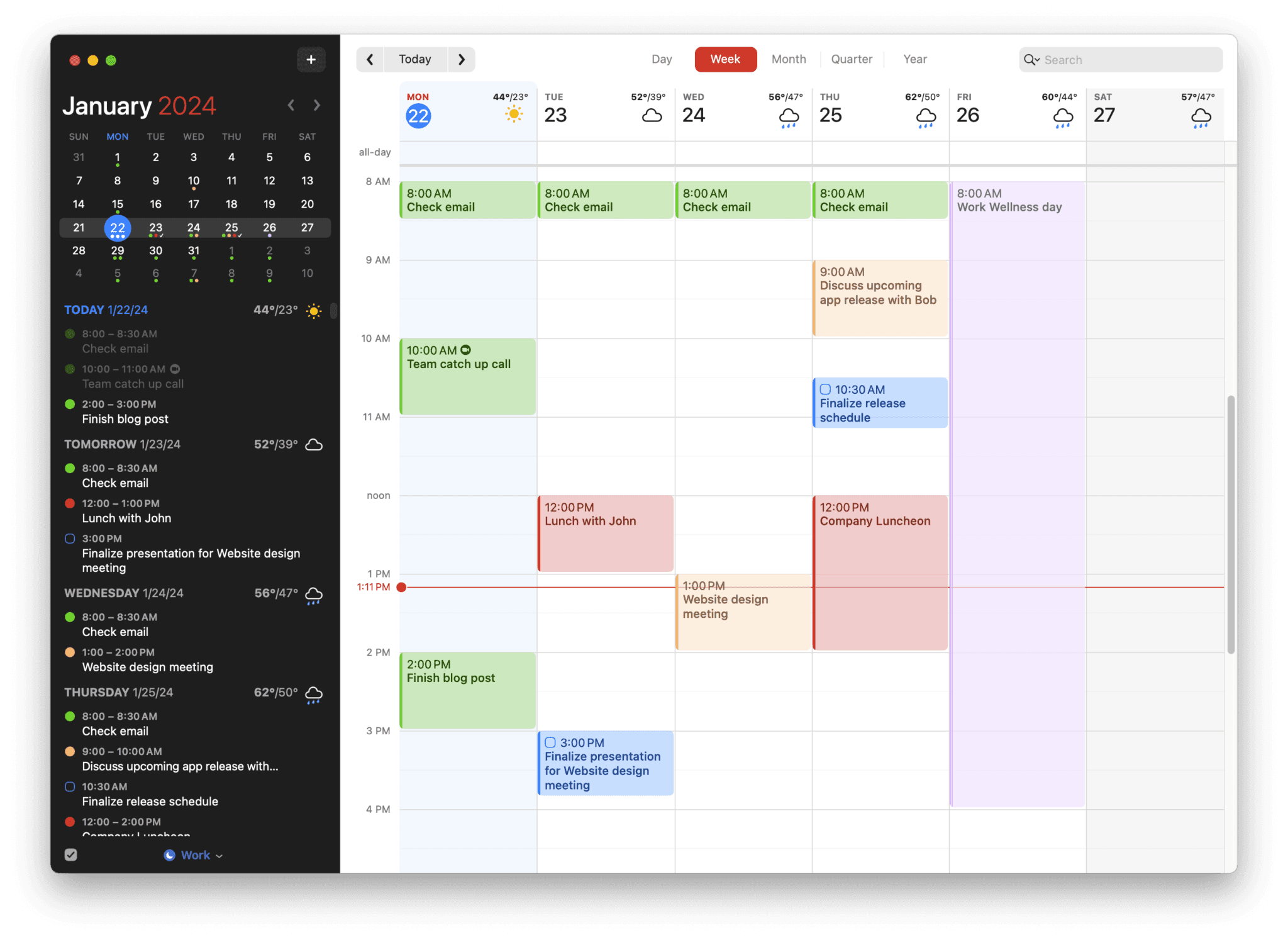
Best for: Dato users who have outgrown the menu bar utility and want the most polished full calendar app available on Mac — with an excellent menu bar component that preserves Dato's glance use case.
Fantastical is the most natural upgrade path from Dato for users who've decided they need a full calendar. Dato's developer describes the relationship directly on Dato's website: "Fantastical is a full-blown calendar app, while Dato is a read-only view of your events." Fantastical has the best-designed menu bar component of any full calendar app — showing upcoming events at a glance, letting you create events via natural language without opening the main window, and joining video calls with one click. The functionality Dato provided isn't lost in the transition.
What Fantastical adds beyond Dato: natural language event entry that handles complex recurring events in a single sentence, proper full calendar views (day, week, month, year), Calendar Sets for switching between work and personal contexts, scheduling links for external meeting coordination, and full Apple ecosystem integration (Siri, Apple Watch, Focus modes, Spotlight, widgets). Task management routes through Apple Reminders — not native to the calendar view — and there's no AI analysis of productivity patterns.
Pros:
The best-designed full Mac calendar app — Apple Design Award, considered at every level
Excellent menu bar component — preserves Dato's quick glance and event creation workflow
Fastest natural language event entry in the category
Deep Apple ecosystem integration: Siri, Apple Watch, Focus modes, Spotlight, Widgets
Scheduling links (Openings) for external meeting coordination
Calendar Sets for instant context switching between work and personal
One-click video call joining from menu bar or notifications
Cons:
Subscription model — $57/year ongoing (vs Dato's one-time purchase)
Task management routes through Apple Reminders — not native to the calendar
No AI analysis of scheduling patterns or productivity intelligence
Mac and iOS only — no Windows, Android, or web app
Pricing: $4.75/month billed annually ($57/year). Limited free version available.
Why switch from Dato: You've outgrown the menu bar view and want a full calendar with the same level of design quality Dato has — plus fast event creation, Apple Watch support, and scheduling links.
4. Calendar 366 II — best full calendar with one-time purchase
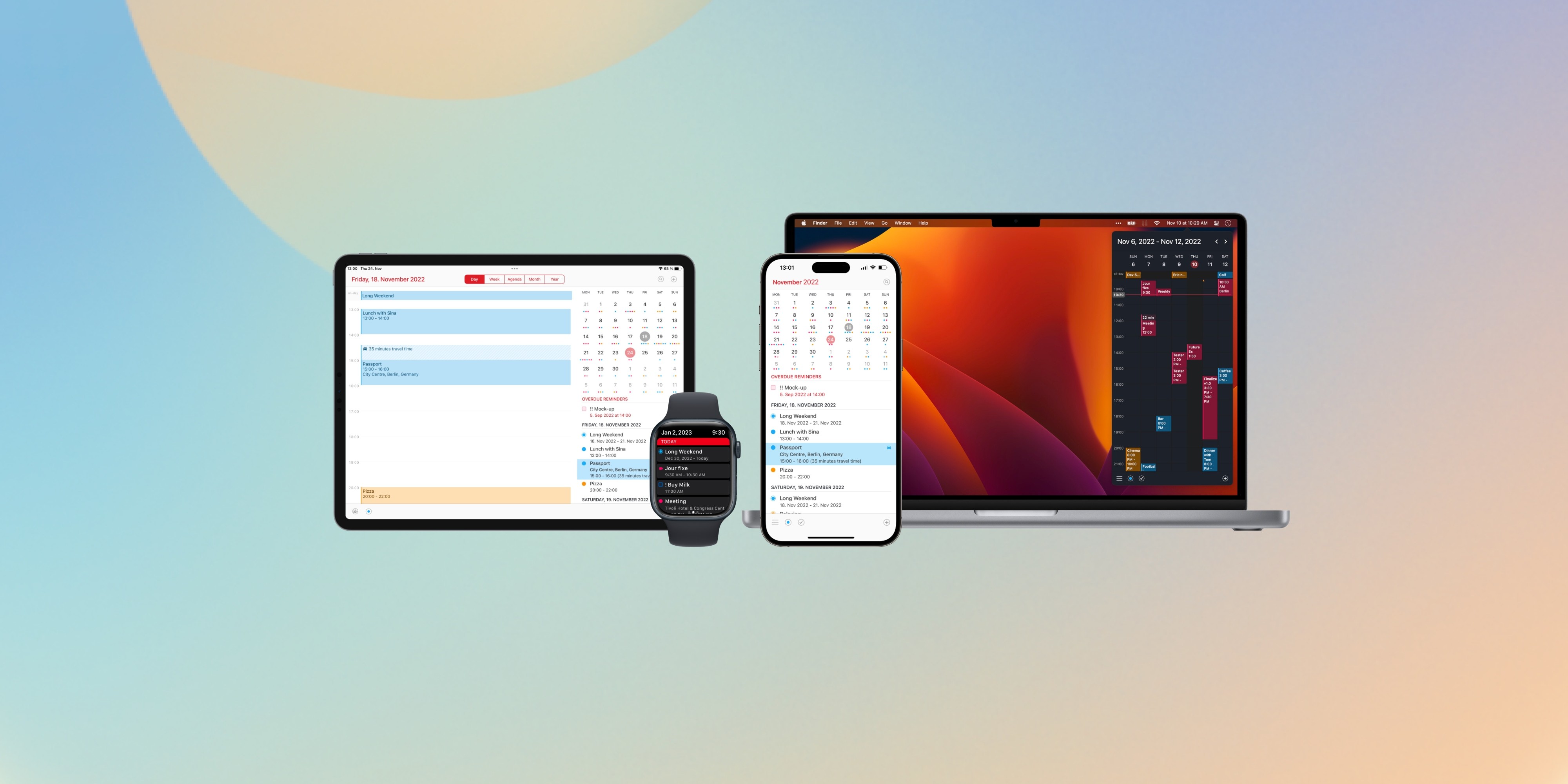
Best for: Dato users who want a full-featured Mac calendar with a strong menu bar component and prefer a one-time purchase to a subscription.
Calendar 366 II is consistently highlighted specifically for its menu bar functionality — it's one of the few full calendar apps where the menu bar component is considered a primary feature rather than a companion. The full calendar offers day, week, month, and year views with good customisation options, and syncs with iCloud, Google Calendar, Outlook, and Exchange. For Dato users stepping up to a full calendar and wanting to stay with the one-time purchase model, Calendar 366 II is the natural destination.
It's less beautifully designed than Fantastical, and doesn't have Dato's level of world clock or time zone sophistication. But as a full calendar with a strong menu bar presence and a one-time purchase price, it sits in a practical position that no other app on this list occupies.
Pros:
Strong menu bar component — one of the best among full calendar apps
One-time purchase — no subscription, matches Dato's pricing philosophy
Full day, week, month, and year calendar views
Syncs Google Calendar, iCloud, Outlook, Exchange
Year planner view for long-range scheduling
Quick event creation from menu bar
Cons:
Design is competent but not Fantastical-level polished
No AI productivity analysis
No task management native to the calendar
Less widely discussed than Fantastical — smaller community, less documentation
Pricing: ~$29.99 one-time (Mac App Store). Also available on Setapp.
Why switch from Dato: You want a full calendar with a strong menu bar component and prefer paying once rather than subscribing — the one-time purchase equivalent of Fantastical's approach.
5. IceCal — best if you want something simpler than Dato
Best for: Dato users whose feedback is that Dato has become too complex for what they actually use it for — who want the menu bar glance use case with less surface area.
IceCal is a focused menu bar calendar app that does less than Dato but does the core use case cleanly. If Dato's breadth of features — time zone management, fullscreen notifications, extensive customisation — has accumulated more complexity than you actually need, IceCal is the step back to simplicity within the same product category.
This isn't an upgrade in capability. It's a lateral move for users who want the glance use case with less overhead. If the reason you're looking at alternatives is wanting more from your calendar tool, IceCal won't address that. If it's wanting a cleaner, simpler utility, it will.
Pros:
Simpler and more focused than Dato
Clean, minimal design
Fast and lightweight
Shows today's events in the menu bar
Cons:
Does less than Dato — no time zones, no world clock, fewer customisation options
Not the answer if you want more capability
Smaller app with less active development history than Dato or Itsycal
Pricing: Free / small one-time fee.
Why switch from Dato: You want the menu bar glance use case with less complexity — a tool that does less but does it with less cognitive overhead.
6. Apple Calendar — best free full calendar
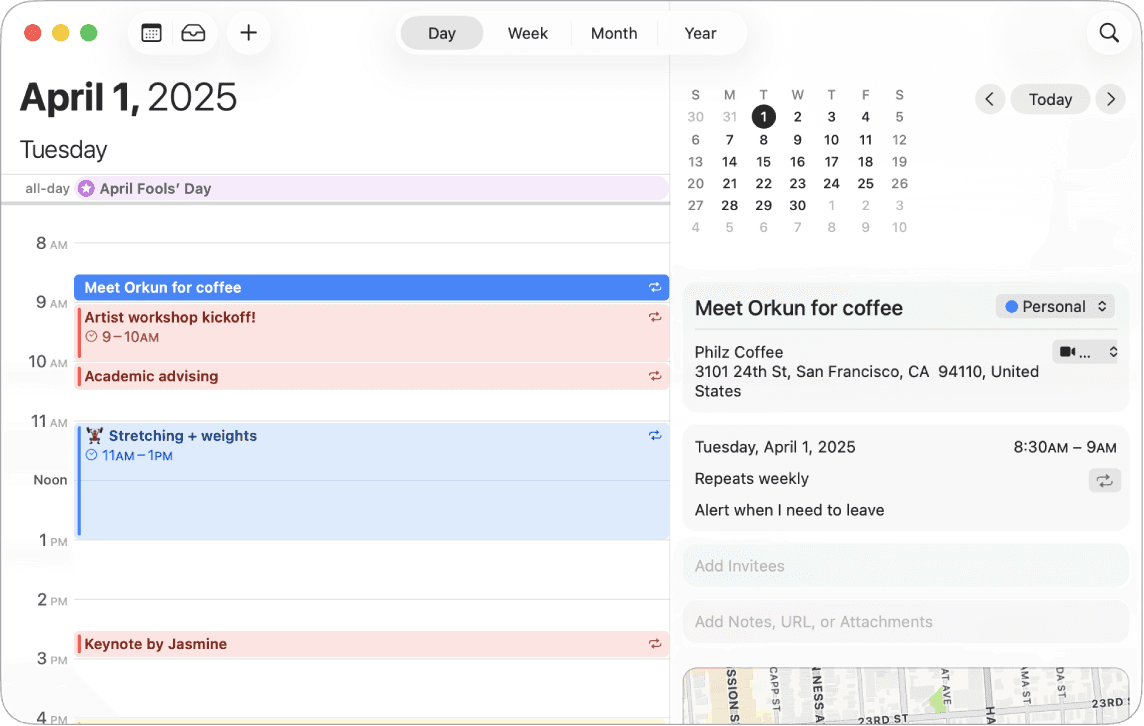
Best for: Dato users stepping up to a full calendar who want the deepest Apple ecosystem integration available, at zero cost.
Apple Calendar is free, native, pre-installed on every Mac, and offers the deepest macOS system integration of any calendar on this list: Spotlight, Siri, Apple Watch complications, Focus modes, system notification centre, Handoff. It syncs iCloud, Google Calendar, Outlook, and Exchange reliably. For Dato users who've decided they need a full calendar and have straightforward scheduling requirements without advanced features, Apple Calendar is the honest zero-cost answer.
The limitation is the ceiling: Apple Calendar is a capable standard calendar, not an ambitious one. No natural language event entry comparable to Fantastical. No task management. No AI analysis. No scheduling links. For Dato users who found Apple Calendar insufficient before Dato and are now stepping back to a full calendar, they'll find the same ceiling they left. For users whose requirements are standard scheduling, it covers them completely at zero cost.
Pros:
Free — zero cost, already installed
Deepest Apple ecosystem integration: Spotlight, Siri, Apple Watch, Focus modes, Handoff
Reliable sync with iCloud, Google Calendar, Outlook, Exchange
Offline access, fast launch, minimal system resources
Zero setup for standard calendar accounts
Cons:
No natural language event entry comparable to Fantastical
No scheduling links or external meeting coordination
No task management beyond basic Reminders integration
No AI productivity analysis
Limited view customisation
Dato users who previously found Apple Calendar insufficient will find the same ceiling
Pricing: Free — included with macOS.
Why switch from Dato: You need a full calendar and want the most natively integrated free option with zero setup and zero cost.
7. Aftertone — best for Dato users who want productivity intelligence
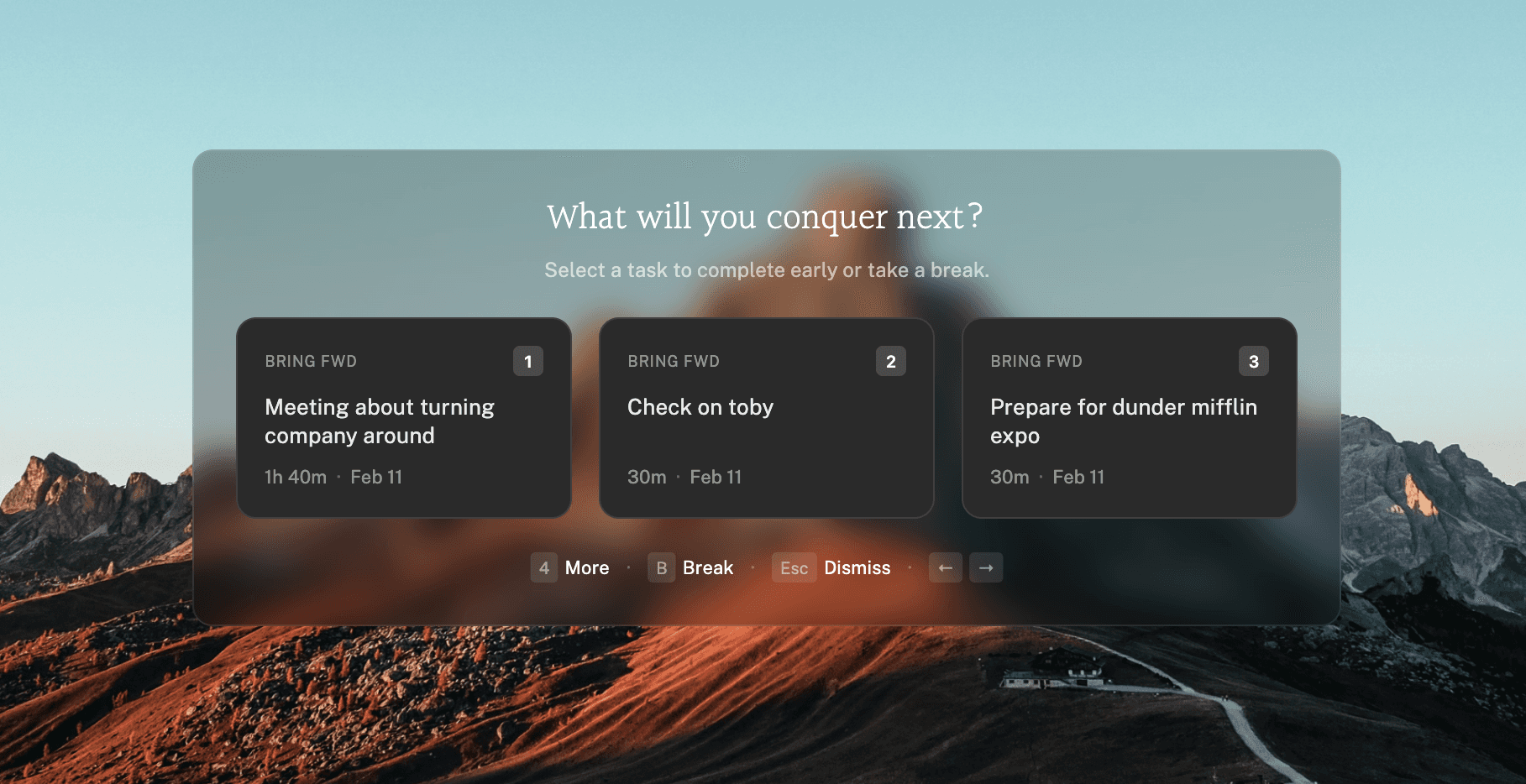
Best for: Dato users who care about Mac design quality and want the full calendar, native task management, and AI productivity intelligence that a menu bar utility can't provide.
Aftertone is a Mac-native calendar and task manager built on behavioural science. For Dato users specifically, the design lineage matters: Aftertone was built with the same kind of design sensibility that attracts users to Dato in the first place — native throughout, considered in its interactions, Mac-specific rather than cross-platform. Dato users care about design quality. Aftertone doesn't ask them to give that up to get more capability.
It also includes a menu bar presence for quick event glancing, so the core functionality Dato provided — seeing what's next without opening anything — isn't lost in the transition.
What Aftertone adds that no menu bar utility can: the AI weekly and daily reports that address the third signal described above — the desire to understand your week rather than just see it. They surface patterns across your scheduling history that you can't easily notice in the moment: which time slots consistently produce real output, how your meeting-to-deep-work ratio has trended, whether your intended schedule and actual behaviour are drifting apart over time. BJ Fogg's behaviour design research and Phillippa Lally's habit formation work at UCL both identify the same mechanism: you can't improve what you can't see clearly. Dato gives you a clean view. Aftertone gives you analysis.
The Focus Screen removes everything from view except the current task during work sessions. Roy Baumeister's research on decision fatigue shows that visible unchosen alternatives at task start measurably reduce execution quality. Auto-Extend keeps the session live if you finish ahead of schedule. Smart Zoning lets you move tasks onto the calendar with keyboard shortcuts alone. Pause holds your place without breaking context. Smart Capture lets you paste text or a screenshot and converts it to structured tasks instantly. Native task management lives inside the same calendar view — tasks understand your actual day rather than sitting in a separate system.
Pros:
AI weekly and daily reports — analyses scheduling patterns over time and surfaces what the data shows about your productivity; no other tool on this list does this
Focus Screen — removes visual load at task execution time
Native task management inside the calendar view, calendar-aware
Menu bar presence — preserves Dato's quick glance functionality
Genuinely native macOS — not Electron, not a web app
$30/month. 7-day free trial, no card required.
Built on 45 principles from behavioural science and cognitive psychology
Cons:
Mac only — iOS coming; no Windows, Android, or web access
Not as feature-rich on pure calendar management as Fantastical or BusyCal
No scheduling links for external meeting coordination
Pricing: $30/month. Free trial available. No subscription.
Why switch from Dato: You've reached the third signal — you want to understand how your week is going, not just see it. Aftertone adds the intelligence layer that a menu bar utility cannot: patterns, analysis, and feedback on whether your schedule is producing results.
8. BusyCal — best for power calendar features at $30/month
Best for: Dato users stepping up to a full calendar who want maximum scheduling depth — smart filters, event templates, custom repeating rules — and prefer paying once.
BusyCal is the most feature-rich native Mac calendar available at $30/month. Smart filters with nested rule groups, event templates, custom travel time calculations, a configurable info panel, and repeating event rules that cover edge cases no other app handles. It includes a menu bar component. For Dato users whose signal for switching is wanting more scheduling depth from a full calendar — rather than better design or productivity intelligence — BusyCal is the right answer.
The design is functional rather than refined, which will matter to some Dato users. A separate purchase is required for iPhone (~$10). But for pure calendar power at $30/month, nothing else on this list matches its depth.
Pros:
Most advanced calendar features available on Mac: smart filters, event templates, custom repeating rules
One-time purchase — no subscription, matches Dato's pricing philosophy
Native Mac app with menu bar component
Full offline access and Apple ecosystem integration
30-day free trial
Syncs Google Calendar, iCloud, Outlook, Exchange, CalDAV
Cons:
Design is functional rather than refined — a step back from Dato's visual polish
Separate purchase required for iPhone ($9.99)
No AI productivity analysis
Task management routes through Reminders or Todoist
Pricing: ~$49.99 one-time (Mac). $9.99 separately for iPhone.
Why switch from Dato: You want the maximum scheduling depth available in a native Mac full calendar, at $30/month.
9. Dot Calendar — best richer menu bar with natural language and meeting links
Best for: Dato users who want to stay in the menu bar but want richer capabilities — natural language event creation, meeting links, world clocks, and multi-calendar sync — all without signing up for an account.
Dot Calendar is a Mac-native menu bar calendar that positions itself as a more capable Dato in the same form factor. Where Dato is primarily a read-only viewer, Dot Calendar adds instant meeting joining (Zoom, Meet, Teams), natural language event creation, scheduling links, world clocks, keyboard navigation, and multi-calendar sync — all within the menu bar experience. No signup required; everything is stored locally.
For Dato users whose frustration is "I want more than a viewer but I don't want to leave the menu bar," Dot Calendar is the most direct answer. It doesn't add task management or productivity analysis, but it adds the interactive layer that Dato deliberately keeps minimal.
Pros:
Stays in the menu bar — no separate app window required
Natural language event creation from the menu bar
Instant meeting join for Zoom, Meet, Teams, and more
World clocks built in — matches Dato's time zone strength
No signup, no cloud account, local data storage
German/EU-based developer — strong privacy stance
Cons:
No task management
Smaller developer — less established than Dato or Fantastical
No AI productivity analysis or weekly review
Pricing: Paid, one-time purchase (check current App Store pricing).
Calendars: Google Calendar, iCloud, Outlook, and others via macOS Calendar integration.
Why choose it: You use Dato primarily for world clocks and event glancing but want to add meeting joining and natural language event creation without switching to a full calendar app.
10. Notion Calendar — best free full calendar for Notion users
Best for: Dato users who want a free, well-designed full calendar app and already use Notion — or who want the cleanest free alternative to Apple Calendar.
Notion Calendar (formerly Cron, acquired by Notion in 2022) is one of the most well-designed free calendar apps for Mac. The interface is clean and fast, it handles multiple calendars from Google and iCloud elegantly, and it has a proper week view, scheduling links, and a polished Mac app. For Notion users, the deep integration with Notion pages and databases makes it the natural calendar companion.
The limitation is the same as Apple Calendar: no task management, no focus execution tools, no AI analysis of productivity patterns. It's a beautiful calendar that records commitments. For Dato users whose primary need is a proper calendar to replace the menu bar utility, Notion Calendar is the strongest free option that isn't Apple Calendar.
Pros:
Completely free — no paid tier needed for core features
One of the best-designed free calendar apps available
Native Mac app — fast, polished, keyboard-friendly
Scheduling links built in
Deep Notion integration for users already in that ecosystem
Handles Google Calendar and iCloud cleanly
Cons:
No task management
No AI productivity analysis
Menu bar presence is limited compared to Dato
Owned by Notion (Atlassian investor ecosystem) — some users prefer independent apps
Pricing: Free.
Calendars: Google Calendar, iCloud.
Why choose it: You want to move from a menu bar utility to a full calendar at zero cost, and you value design quality. The best free option for Dato users stepping up to a proper calendar.
The design standard Dato set
One thing worth naming explicitly about Dato users: they chose an app partly because it was well-designed. That's a genuine product sensibility, and it's worth carrying forward rather than abandoning when moving to a full calendar. Not every full calendar app is designed with the same care as Dato.
The alternatives on this list that maintain that standard: Fantastical is the design benchmark for full Mac calendar apps — the most considered interface available. Aftertone was built with the same native-first, Mac-specific design philosophy that Dato embodies. Apple Calendar is clean and native. Calendar 366 II is functional and capable. BusyCal is powerful but trades design polish for depth.
For Dato users for whom design is a first-order criterion alongside capability, the shortlist is Fantastical and Aftertone. The question that separates them is whether you want the calendar to show you your schedule well, or to help you understand whether that schedule is actually working. Fantastical does the former excellently. Aftertone does both.
Frequently asked questions
What is the best free alternative to Dato for Mac?
Itsycal is the most widely recommended free alternative — open-source, actively maintained, covers the core menu bar calendar use case at zero cost. MeetingBar is the best free option specifically for joining video calls quickly. Apple Calendar combined with macOS's system clock covers the absolute basics at zero cost without any additional app.
What is the difference between Dato and Fantastical?
Dato's own developer describes it directly: "Fantastical is a full-blown calendar app, while Dato is a read-only view of your events." Dato is a menu bar utility — primarily a viewer with some event creation capability. Fantastical is a full calendar app with a strong menu bar component. Fantastical adds natural language event entry, full week and month views, Calendar Sets, scheduling links, and task management via Reminders.
Should I replace Dato with a full calendar app?
Only if you've outgrown what Dato does. The three signals: you're opening a full calendar constantly because the menu bar view isn't enough; you want tasks to live alongside events; or you want to understand how your week is going, not just see it. If none of these apply, Dato or a simpler alternative like Itsycal is the right answer.
Does Dato support Google Calendar?
Yes — Dato reads from macOS's calendar system, which supports Google Calendar, iCloud, Outlook, Exchange, and CalDAV. Add your Google account to the built-in Calendar app, enable those calendars in Dato's settings, and they appear. Dato can also open Google Calendar events directly in the Google Calendar web app.
What is MeetingBar and how does it compare to Dato?
MeetingBar is a free, open-source Mac app that specialises in one thing: showing upcoming meetings in the menu bar with one-click video call joining for Zoom, Meet, Teams, and 40+ services. It's narrower than Dato — no world clock, no time zone features, no detailed event display — but covers the meeting-join workflow completely for free. If most of your Dato usage is joining video calls, MeetingBar covers that use case at zero cost.
What is Dot Calendar and how does it compare to Dato?
Dot Calendar is a Mac-native menu bar calendar that adds interactive features Dato intentionally keeps minimal: natural language event creation, instant meeting joining for Zoom, Meet, and Teams, scheduling links, and world clocks. It stays in the menu bar form factor, making it the most direct upgrade for Dato users who want more interactivity without switching to a full calendar app. No signup required; all data stored locally. Dot Calendar is made by a small German developer — privacy-focused, with no cloud account requirement.
Is Notion Calendar a good free alternative to Dato?
Notion Calendar (formerly Cron) is a good free alternative for users who want a full calendar app rather than a menu bar utility. It's one of the best-designed free Mac calendar apps, handles Google Calendar and iCloud cleanly, and includes scheduling links. For Notion users, the deep workspace integration makes it the natural companion. It doesn't have the menu bar clock replacement or world clock depth of Dato, and it offers no task management or productivity analysis. But as a free, well-designed full calendar, it's the strongest zero-cost option for Dato users stepping up to a proper calendar.